How to Start Live Streaming on Twitch, YouTube, and Facebook in 2026
By Alex Topilski, Founder
More than 34 million people streamed live video on Twitch, YouTube, and Facebook in 2025 - and the combined live viewership across those three platforms exceeded 1.4 billion hours watched per month. Despite those numbers, the first-time streamer setup experience on each platform is surprisingly underdocumented. Twitch has Affiliates locked at 3,500 Kbps, YouTube supports up to 51,000 Kbps for 4K60, and Facebook's Live Producer API caps at 8,000 Kbps - yet none of these platforms surface those limits clearly during setup. Getting the settings wrong wastes your upload bandwidth, drops quality, or breaks the stream entirely. This guide walks through every setting you need, from the encoder choice to the stream key, for each platform - and ends with how to push to all three at once without re-encoding on your machine.
Step 1: Set Up Your Streaming Software and Encoder
OBS Studio is the standard starting point: it is free, runs on Windows, macOS, and Linux, and supports every platform via RTMP and RTMPS. Streamlabs is OBS-based with additional alert integrations for Twitch. Either works for the steps below.
Before you touch a stream key, configure the encoder settings in OBS under Settings → Output → Streaming. The wrong encoder choice is the single most common cause of dropped frames and stream instability:
- NVIDIA NVENC H.264 - use if you have an NVIDIA GPU (GTX 1060 or newer). Hardware encoding offloads work from your CPU and handles 6,000 Kbps at 1080p60 without frame drops even during gameplay.
- AMD AMF H.264 - use for AMD GPU users on Windows. Similar CPU offload benefit, slightly lower quality at the same bitrate compared to NVENC on equivalent hardware.
- x264 (CPU) - available to everyone. Requires a 6-core CPU or better to sustain 1080p60 at 6,000 Kbps without dropped frames. Set preset to veryfast or fast for streaming; slower presets improve quality but spike CPU usage.
- Keyframe interval - always set to 2 seconds for all three platforms. A keyframe every 2 seconds is the maximum each platform's ingest server will accept without playback artefacts.
- Audio - AAC codec at 160 Kbps. This covers voice and music with no audible compression artefacts and is supported by all three platforms.
Your internet connection determines the ceiling on everything else. For 1080p60 at 6,000 Kbps video plus 160 Kbps audio, you need at least 8 Mbps of sustained upload to leave headroom for packet retransmission. Run a speed test before streaming; if your upload fluctuates below 6 Mbps, drop to 720p30 at 3,000 Kbps to avoid buffering for viewers.
Step 2: How to Start Live Streaming on Twitch
Twitch is the dominant platform for gaming and interactive live content, with over 7 million monthly active streamers as of 2025. Setup takes under 5 minutes once your encoder is configured.
- Go to Creator Dashboard → Settings → Stream and copy the Primary Stream Key. Keep it private - anyone with this key can stream to your channel.
- In OBS, open Settings → Stream. Select Twitch as the service. The server URL auto-selects the nearest ingest point. Paste your stream key.
- Set your video bitrate based on your Twitch status:
- Affiliate or Partner: up to 6,000 Kbps at 1080p60
- Standard account: 3,500 Kbps is the safe ceiling; higher bitrates may be throttled for viewers without Twitch Turbo or Prime
- Click Start Streaming in OBS. Check your Twitch dashboard - the stream health indicator should show green within 15 seconds.
Twitch recommends H.264 encoding for ingest. HEVC (H.265) is not currently supported on Twitch's standard ingest path. If you send H.265, the ingest server will reject the stream silently on many configurations.
Step 3: How to Start Live Streaming on YouTube
YouTube Live reaches over 2 billion monthly users and supports the widest bitrate range of the three platforms - from 400 Kbps for 360p up to 51,000 Kbps for 4K60 HDR. Live streaming must be enabled on your channel before first use; new channels typically wait 24 hours after enabling it before the feature activates.
- In YouTube Studio, click Create → Go Live. For a scheduled or recurring stream, go to Manage → Create Stream to generate a persistent stream key that doesn't expire between sessions.
- In OBS, go to Settings → Stream and select YouTube - RTMPS. Paste the stream key. RTMPS (encrypted RTMP) is preferred over plain RTMP for YouTube in 2026.
-
Choose your bitrate based on resolution target:
- 1080p30: 4,500-6,000 Kbps
- 1080p60: 7,500-9,000 Kbps
- 1440p60: 16,000 Kbps
- 4K30: 20,000-30,000 Kbps
- In the YouTube Live dashboard, set Latency to Low-latency (5-10 second delay) for interactive streams with chat, or Normal (30 seconds) for broadcast-style content where audio sync is more important than chat responsiveness.
- Click Start Streaming in OBS. The YouTube dashboard shows live viewer count and stream health within 30 seconds.
Step 4: How to Start Live Streaming on Facebook
Facebook Live reaches approximately 3 billion monthly active users across personal profiles, Pages, and Groups. The setup differs slightly depending on where you're streaming: a personal profile uses the Facebook app or browser, while Pages and Groups offer the Live Producer dashboard with higher bitrate limits.
- On your Facebook Page, click Live Video → Use Stream Key (in the Live Producer tab). A Page stream key is persistent - copy it and store it securely.
- Note the RTMPS server URL shown below the stream key field. It looks like
rtmps://live-api-s.facebook.com:443/rtmp/. - In OBS, go to Settings → Stream → Custom. Paste the RTMPS server URL in the Server field and the stream key in the Stream Key field.
-
Facebook bitrate limits depend on the surface:
- Personal profile: up to 4,000 Kbps video, 128 Kbps audio
- Page with Live Producer: up to 8,000 Kbps video, 128 Kbps audio
- Click Go Live in the Live Producer dashboard before clicking Start Streaming in OBS - Facebook starts the session on the platform side first.
Facebook Live streams remain on your Page as a VOD replay automatically after the broadcast ends. Comment moderation tools are available in the Live Producer sidebar during the stream, including keyword filters and manual removal. Facebook's ingest also supports H.264 only; HEVC input is not accepted on any surface in 2026.
Platform Settings Comparison
The table below summarizes the recommended settings for each platform. These are the working configurations as of June 2026 - platform limits change, so re-verify if you experience unexpected stream rejection or quality drops.
| Setting | Twitch | YouTube Live | Facebook Live |
|---|---|---|---|
| Max video bitrate | 6,000 Kbps (Affiliate/Partner) | 51,000 Kbps (4K60) | 8,000 Kbps (Page/Producer) |
| Recommended 1080p60 | 6,000 Kbps | 7,500-9,000 Kbps | 6,000 Kbps |
| Video codec | H.264 only | H.264 (H.265 via some paths) | H.264 only |
| Audio codec | AAC | AAC | AAC |
| Max audio bitrate | 160 Kbps | 384 Kbps | 128 Kbps |
| Keyframe interval | 2 seconds | 2 seconds | 2 seconds |
| Ingest protocol | RTMP / RTMPS | RTMPS (preferred) | RTMPS |
| Stream latency | ~5 seconds | 5-30 seconds (configurable) | ~10 seconds |
| VOD replay after stream | Yes (60 days, Affiliates/Partners) | Yes (immediate) | Yes (permanent) |
Step 5: Multistream to All Three Platforms at Once
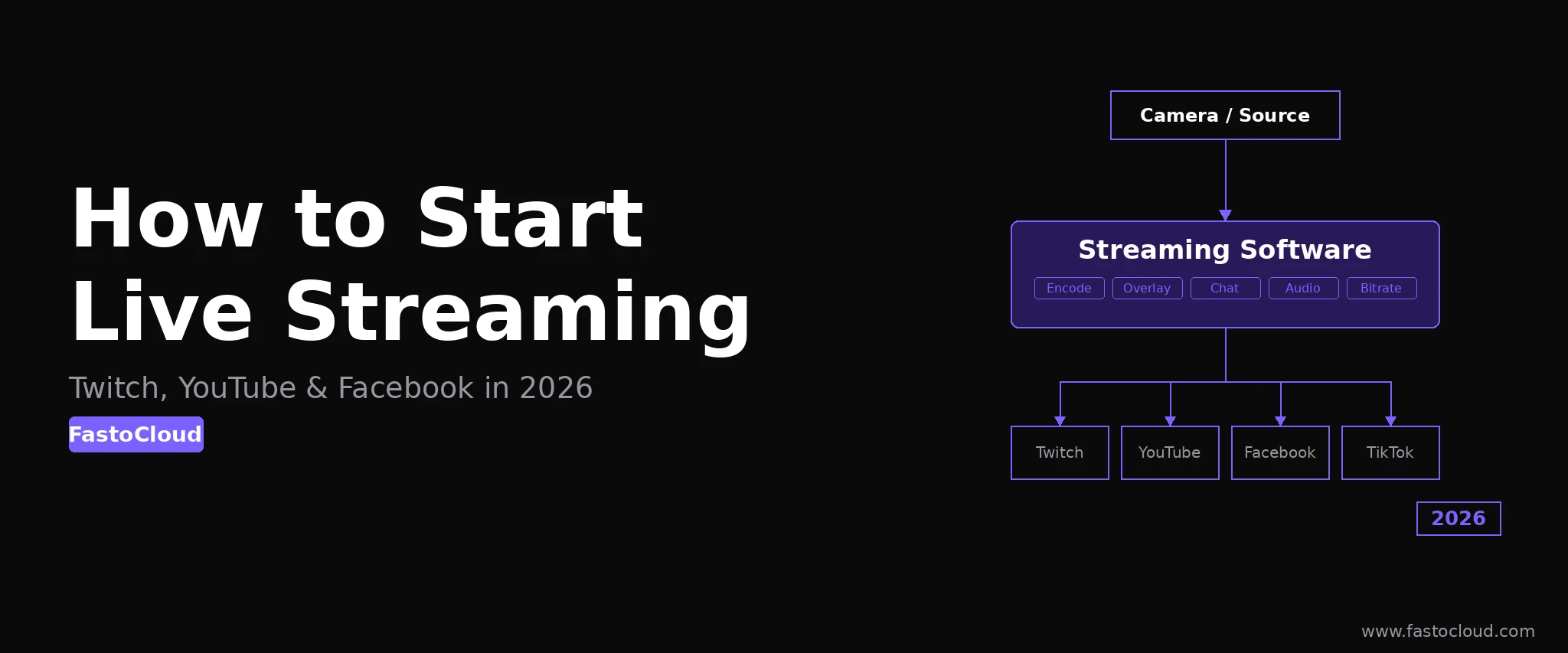
Streaming to Twitch, YouTube, and Facebook simultaneously doubles or triples your audience reach without producing additional content. The challenge is that each platform requires a separate RTMP connection, and encoding three separate streams from your local machine triples your upload bandwidth requirement - at 6,000 Kbps per platform, that's 18,000 Kbps or roughly 18 Mbps sustained upload, which exceeds most home connections.
The right architecture encodes once locally and sends one stream to a relay server, which then fans out to each platform:
- OBS Multiple RTMP Outputs plugin - free, open source, runs on your machine. Adds multiple stream destinations in OBS settings. Works well at 720p; at 1080p60 to 3 platforms, CPU usage on x264 can spike to 100% on mid-range systems.
- Cloud restreaming services (Restream.io, Splitcamp) - pay a monthly fee (typically $16-49/month) and get a single ingest point that fans out to unlimited platforms. Latency adds 1-3 seconds. You give up full control of your stream data and depend on their uptime.
- Self-hosted restreaming server - most cost-efficient for operators who run 24/7 streams or want data ownership. FastoCloud Media Server starts at $25/month and accepts a single RTMP push from OBS, then simultaneously restreams to Twitch, YouTube, Facebook, and any additional RTMP destination - including your own CDN - with no re-encoding overhead on your local machine. This is the approach used by IPTV operators who stream live channels to social platforms as a distribution layer.
For 24/7 automation - ingesting a live channel and restreaming it continuously without a desktop OBS session - a server-side approach is the only viable option. The FastoCloud middleware platform handles scheduled streams, failover ingest, and multi-destination output from a single web dashboard, running on your own Linux server.
When to Move Beyond Social Platforms
Twitch, YouTube, and Facebook are excellent distribution channels, but they impose constraints that become limiting as your audience and monetization goals grow:
- Revenue splits - Twitch takes 50% of subscription revenue from standard Affiliates (70/30 is reserved for select Partners). YouTube takes 30% of Super Chat and channel membership revenue.
- Content policies - all three platforms can demonetize, age-restrict, or remove streams for policy violations without notice or appeal timeline guarantees.
- No subscriber ownership - your audience belongs to the platform. If a platform restricts your account, you lose access to your entire viewer base with no data export option.
- VOD monetization limits - Twitch's VOD retention is 60 days for Affiliates; YouTube provides permanent VOD but takes 45% of ad revenue for live replays.
Operators who reach 500 to 1,000 regular viewers typically start running a parallel self-hosted stream alongside their social channels: a branded OTT destination where subscribers pay directly, VOD libraries are permanent, and the operator owns the audience data. FastoCloud's free trial lets you evaluate a full self-hosted streaming stack - including live ingest, transcoding, subscriber management, and white-label apps - before committing to infrastructure costs. See the downloads page for the latest media server builds.
The two approaches are not mutually exclusive. Many operators run FastoCloud as the primary broadcast origin - encoding once at 1080p60 at 8,000 Kbps - and use the built-in restreaming feature to simultaneously distribute to Twitch, YouTube, and Facebook at the appropriate per-platform bitrate, while serving paying subscribers from the self-hosted player at full quality. This architecture keeps total upload bandwidth under 12 Mbps regardless of how many platforms you target, because all transcoding happens on the server side at $25-$50/month rather than on your local workstation.
Blog FastoCloud